
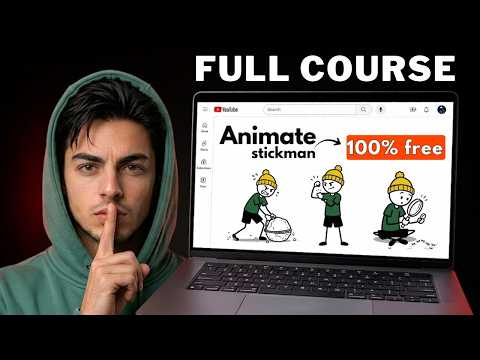
How to Make AI Stickman Videos That Go Viral (100% Free)
Stickman videos are quietly taking over YouTube, and the people making them aren’t animators. In the video I break down two AI stickman channels about human history and human behavior: one with 26K subscribers from 66 videos, estimated by vidIQ at around $10K/month, and one with 110K subscribers from just 16 videos, where most uploads cross a million views. The topics are ridiculously simple, and every tool below is free.
Step 1: Run the master prompt
Download the stickman master prompt (link above), copy all of it, paste it into a new ChatGPT chat and send.
- ChatGPT gives you 10 topic ideas. Don’t like them? Type
more. - Type the number of your topic.
- Choose short (9:16) or long (16:9).
- Pick a duration (15/30/45/60 s, or type your own).
- You get the full script. Type
nextfor the character sheet prompt, thennextagain.
The prompt then breaks the script into scenes and gives you two prompts per scene: an image prompt and an animation prompt. Let it finish all scenes before generating anything.
Step 2: Generate a consistent character and scene images
In Google Flow, start a new project:
- Switch to Image, pick your aspect ratio, model Nano Banana 2, quantity 1.
- Paste the character prompt and generate your stickman.
- Then paste each scene’s image prompt, one by one. The character stays consistent across scenes.
Out of credits? Pippit is a solid alternative for images.
Step 3: Animate each scene
Switch Flow to Video, choose model Omni Flash 1.1 at 720p, and match the duration to what the scene’s animation prompt says (it varies per scene). Drop in the scene image, paste the animation prompt and generate. Repeat for every scene and download the clips.
Step 4: Make the free AI voice sound human
Don’t paste your script straight into ElevenLabs. First run it through the voiceover prompt (link above) in Claude, which reformats it for realistic delivery. Then in ElevenLabs:
- Text to speech → model v4
- Filter voices by language and category (e.g. Educational), gender, age and quality
- Generate, compare, and download the best take
Step 5: Edit in CapCut
In CapCut:
- Add the voiceover and cut every unnecessary gap.
- Add scene clips in order and match each to its line. If a clip is short, slow it down instead of stretching it.
- Add a keyframe zoom (start and end keyframe, zoom in on the end one) for smooth motion.
- Use the Black fade transition (Classic category) between scenes.
- Add background music under the voice and check the balance.
- Generate captions, style them to match, and export.
📝 Your notes on this video
Saved on this device onlySome links in this post are affiliate links. They cost you nothing extra and help support the channel.
New to faceless YouTube?Start with my zero → monetized roadmapNiches, titles, hooks and the monetization rules, all in one place. →Keep watching



Get my master prompts free
Join the Saidox Faceless Vault: free prompts, checklists and workflows from every video, plus a community of faceless creators.
Join the free Vault →